Endgame Viable
How to Rename a Windows Service
Tom 164 words
I came across a situation where I wanted to rename a Windows service that had already been installed. (In this case I wasn’t able to rebuild the application to alter the service installation properties, which would of course be the ideal solution.) Google was spectacularly unhelpful, so this is how you do it:
Open RegEdit.
Navigate to HKEY_LOCAL_MACHINESYSTEMCurrentControlSetServices.
Find the key for the service you want to change and simply rename it.
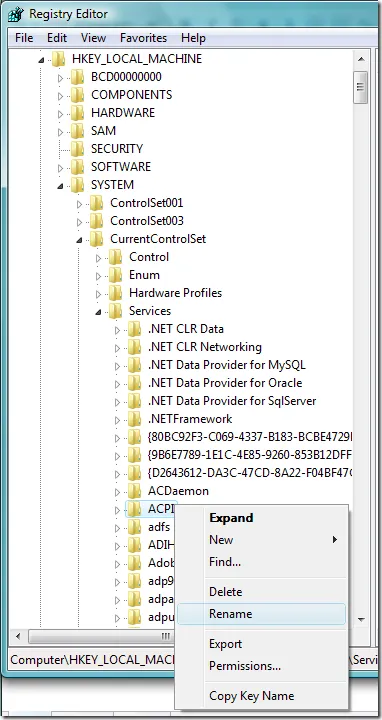
A reboot was necessary for the change to take effect in the Services snap-in.
You may also encounter a sub-key called DisplayName that you can change. This is not the same as the key above. When using “net start” and “net stop,” for example, you need to refer to the key name above.

I did this on Windows XP and Windows Server 2003; presumably it will also work in Vista, etc.
STANDARD REGEDIT DISCLAIMER: Do not attempt this unless you know what you’re doing. The consequences of a mistake could be disastrous.
Sorry, new comments are disabled on older posts. This helps reduce spam. Active commenting almost always occurs within a day or two of new posts.